How to record Zoom or Google Meet in Chrome (your own tab + audio)
Record your own Zoom or Google Meet presentation tab in Chrome with audio — consent-safe workflow, tab audio toggle, microphone setup, and MP4 export.
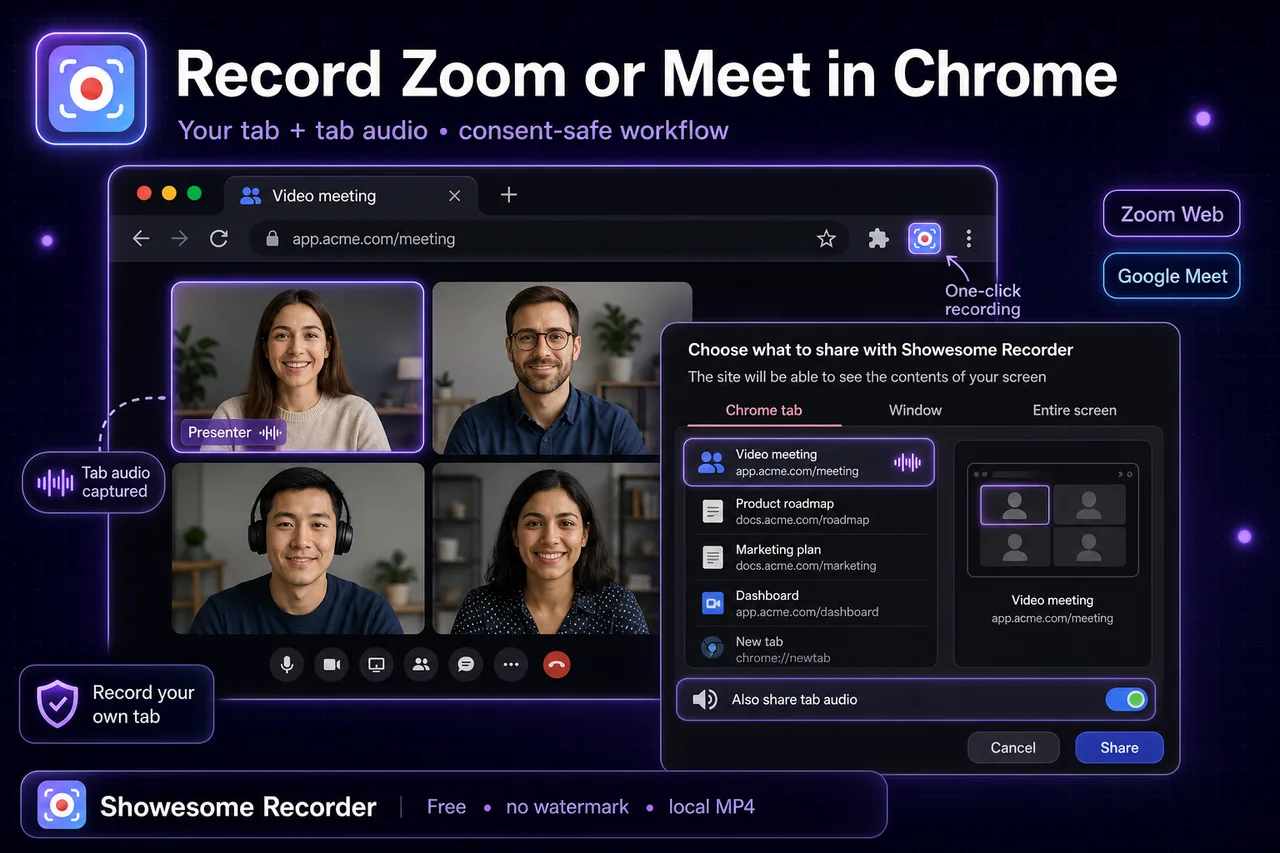
Yes - you can record Zoom or Google Meet in Chrome when you record your own shared tab and follow your organization rules. In Showesome, choose a recording mode, pick your mic, select Chrome tab, enable Also share tab audio, and export MP4 locally.
This guide focuses on consent-safe recording of your own meeting presentations, demos, and training sessions.
Open on watch page (for search and full-screen viewing)
First: consent and policy (important)
Before recording any meeting content:
- Follow your company/school policy and local law
- Tell participants when recording is active if policy requires it
- Prefer recording your own presentation tab or content you own
- Avoid recording private discussions without clear permission
This article is about recording workflows in Chrome, not legal advice.
Quick setup for Meet/Zoom tab recording
- Open Showesome in Chrome.
- Choose Screen Only or Screen + Camera.
- Select your microphone.
- Click Start Recording.
- In Chrome's share dialog, pick Chrome tab and select the Meet or Zoom tab.
- Enable Also share tab audio.
- Click Share.
If the meeting platform opens a desktop app instead of a tab, this guide does not apply; use your platform's native recorder or desktop tools.
Meet vs Zoom in Chrome: what actually matters
| Scenario | Recommended capture |
|---|---|
| You present slides in Meet | Share the Meet tab + enable tab audio |
| You demo a web app during Zoom in browser | Share the demo tab directly when possible |
| You need full desktop + many sources | Consider OBS or platform-native tools |
| You just need a recap clip | Chrome tab recording is usually enough |
For full tab-audio fundamentals, see How to record a Chrome tab with audio.
Audio: tab sound vs microphone
These are separate inputs:
- Tab audio toggle captures sound coming from the tab
- Microphone captures your narration
Most silent meeting recordings happen because Also share tab audio was off.
If audio is still missing, use Screen recording has no sound.
Meet workflow (consent-safe)
- Join in Chrome.
- Start Showesome.
- Select the Meet tab in Chrome's share picker.
- Turn on tab audio.
- Narrate with your mic as needed.
- Stop recording and review in preview.
For Slides-heavy classes, pair this with Record Google Slides presentation in Chrome.
Zoom workflow in Chrome
- Use Zoom Web (browser tab), not the desktop app, for this method.
- Start Showesome and select the Zoom tab.
- Enable tab audio and mic.
- Record your hosted segment or training demo.
- Export MP4 locally.
If your team uses the desktop Zoom app only, use desktop capture workflows instead.
Can I record a Microsoft Teams meeting in Chrome?
Yes, when Teams is open in a Chrome tab and your school or company allows the recording. Start Showesome, share the Teams tab, and turn on Also share tab audio. Use your microphone for your own voice. Tell participants when policy requires it.
The Teams desktop app is not a Chrome tab, so this workflow does not capture that window. Use Teams' own recording, or a window or screen capture, when the meeting stays in the desktop app.
Troubleshooting
| Problem | Fix |
|---|---|
| No meeting sound | Re-record with Also share tab audio enabled |
| You hear yourself doubled | Mute one monitoring path/headphones; avoid loopback |
| Wrong tab recorded | Re-open share dialog and pick the correct tab |
| Camera missing | Check Chrome camera permissions and selected device |
| Choppy long sessions | Close heavy tabs, reduce background load, record shorter segments |
Should I use OBS instead?
Use OBS when you need streaming, multi-scene layouts, or complex routing.
Use Chrome extension recording when you need fast, clear, browser-first captures.
See OBS vs Chrome screen recorder for a full side-by-side.
Can I record Google Meet or Zoom with tab audio in Chrome without the desktop app?
Yes — when the meeting runs in a Chrome tab (Zoom Web or Meet in browser). Select that tab in Chrome's share dialog and enable Also share tab audio. The desktop Zoom/Meet apps need a different workflow.
Related reading
- How to record a Chrome tab with audio
- How to record your screen on Chrome (2026)
- Record a product demo in Chrome
- Support
Quick checklist
- Confirm your policy/consent requirements.
- Record your own Chrome meeting tab.
- Turn on Also share tab audio and mic.
- Keep clips focused; split long sessions.
- Export MP4 locally from preview.
Was this guide helpful?
One vote per browser. No account required.
Be the first to share feedback.
Comments
Join the discussion — comments are moderated to keep things helpful. Be respectful and constructive.
Preparing sign-in…