Screen recording has no sound? Fix it fast (Mac, Windows, and Chrome)
Silent screen recordings usually come from mic permissions, the wrong audio source, or missing tab audio in Chrome’s share dialog. Diagnose in 30 seconds, then apply the right fix.
You finished a take, played it back, and heard nothing. That is one of the most common screen-recording problems — and it is usually not a broken file.
Most silent clips come from one of three causes: microphone permissions or mute, tab audio not enabled in Chrome’s share dialog, or trying to capture system audio with a tool that cannot record it (especially on Mac). If Chrome blocks recording entirely or the camera stays black, see Chrome permissions fix guide first.
This guide helps you diagnose which case you are in and fix it on Mac, Windows, and Chrome — including when Showesome is the right fit for tab + mic capture.
Tab audio only missing? Go to share tab audio missing in Chrome. Setting up mic + tab sound from scratch? Record your screen with audio or record a Chrome tab with audio.
1. Diagnose in 30 seconds
Before you change settings, answer two questions:
- Did you want your voice in the recording? If yes, check mic permission and mute — not tab audio first.
- Did you want sound from the browser tab, app, or meeting? If yes, you need tab audio or system audio capture — a separate setting from the microphone.
| What is missing | Likely cause | Jump to |
|---|---|---|
| Your voice only | Mic muted, wrong input, or permission denied | Microphone fixes |
| Tab / video / meeting sound only | Also share tab audio off in Chrome, or wrong share target | Tab audio in Chrome |
| Everything silent | Permissions + audio source both wrong, or source app muted | Work through sections 2–4 |
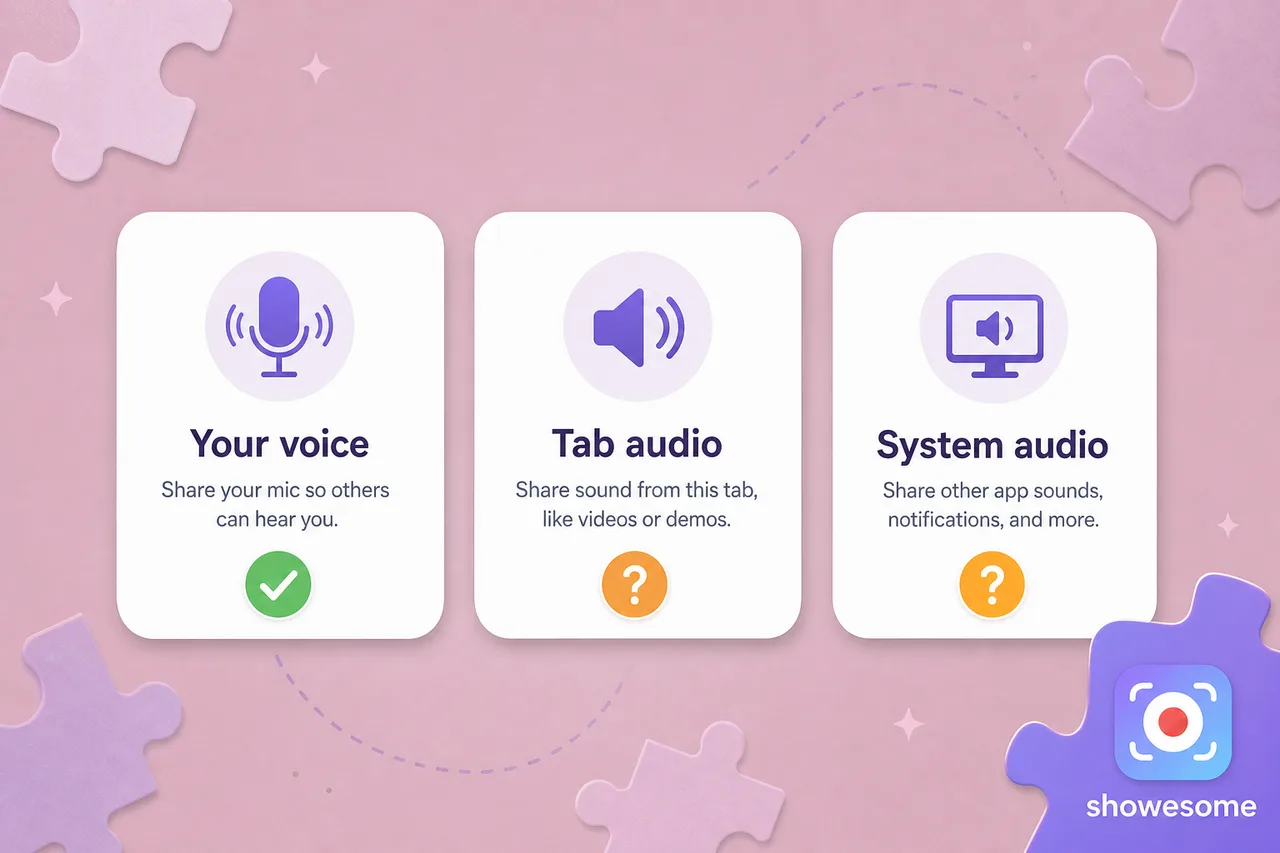
Quick test: Record a 10-second clip with narration (“testing one two”) while a YouTube video plays in the tab you share. Playback tells you immediately whether mic, tab sound, or both failed.
2. Fix microphone audio missing
If your voice is missing but the rest of the recording looks fine:
In Showesome (Chrome)
- Open the Showesome popup and confirm Microphone is set to the input you are actually using (headset vs built-in).
- Make sure mute is off before you click Start Recording.
- When Chrome asks for microphone access, choose Allow.
See Record your screen with audio for the full mic + mute workflow, or Getting Started step 4 for the interactive device tour.
macOS microphone permission
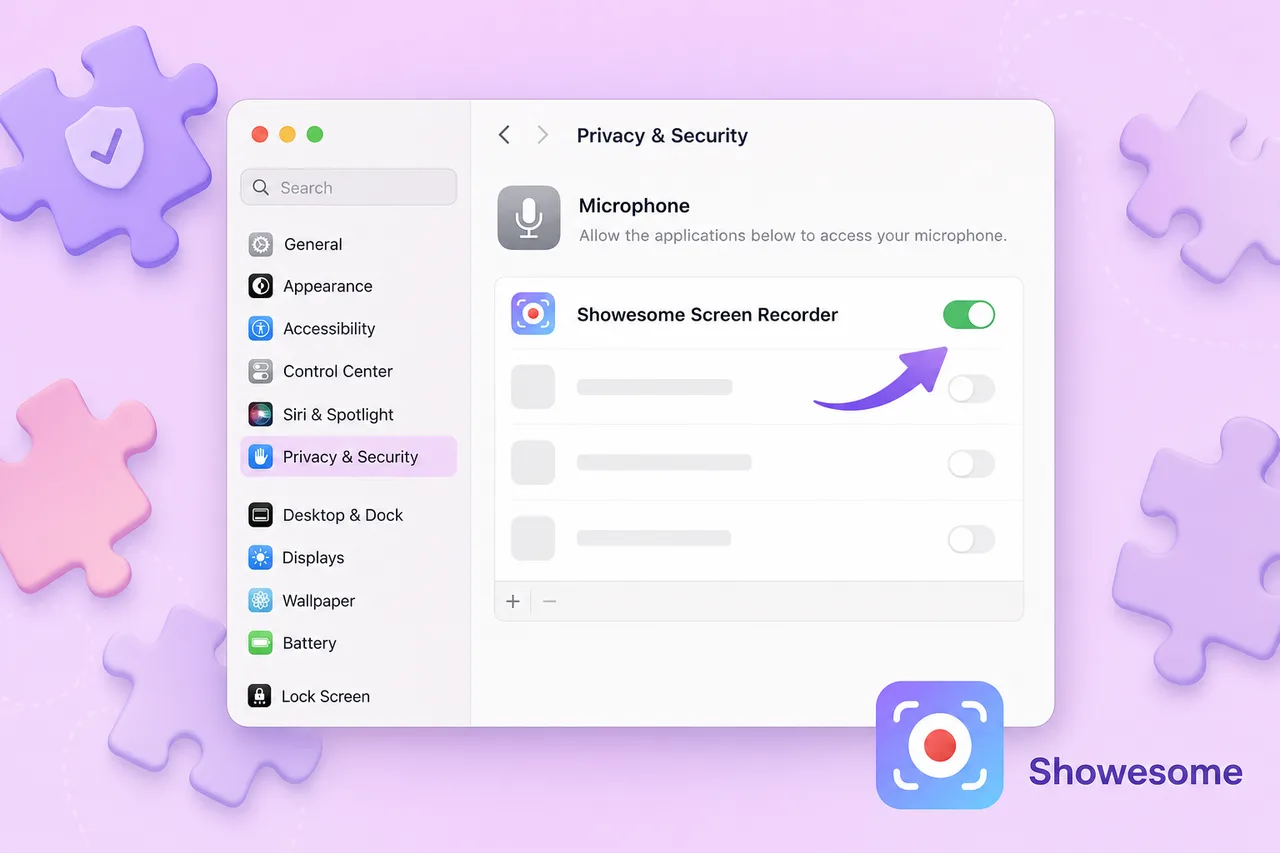
On Mac, the recording app must be allowed to use the mic:
- Open System Settings → Privacy & Security → Microphone.
- Enable access for Google Chrome (Showesome runs inside Chrome).
- Quit and reopen Chrome, then try a short test clip.
Windows microphone permission
- Open Settings → Privacy & security → Microphone.
- Turn Microphone access on and allow Google Chrome.
- Open the Volume mixer (right-click the speaker icon) and confirm Chrome is not muted.
3. Fix missing tab audio in Chrome
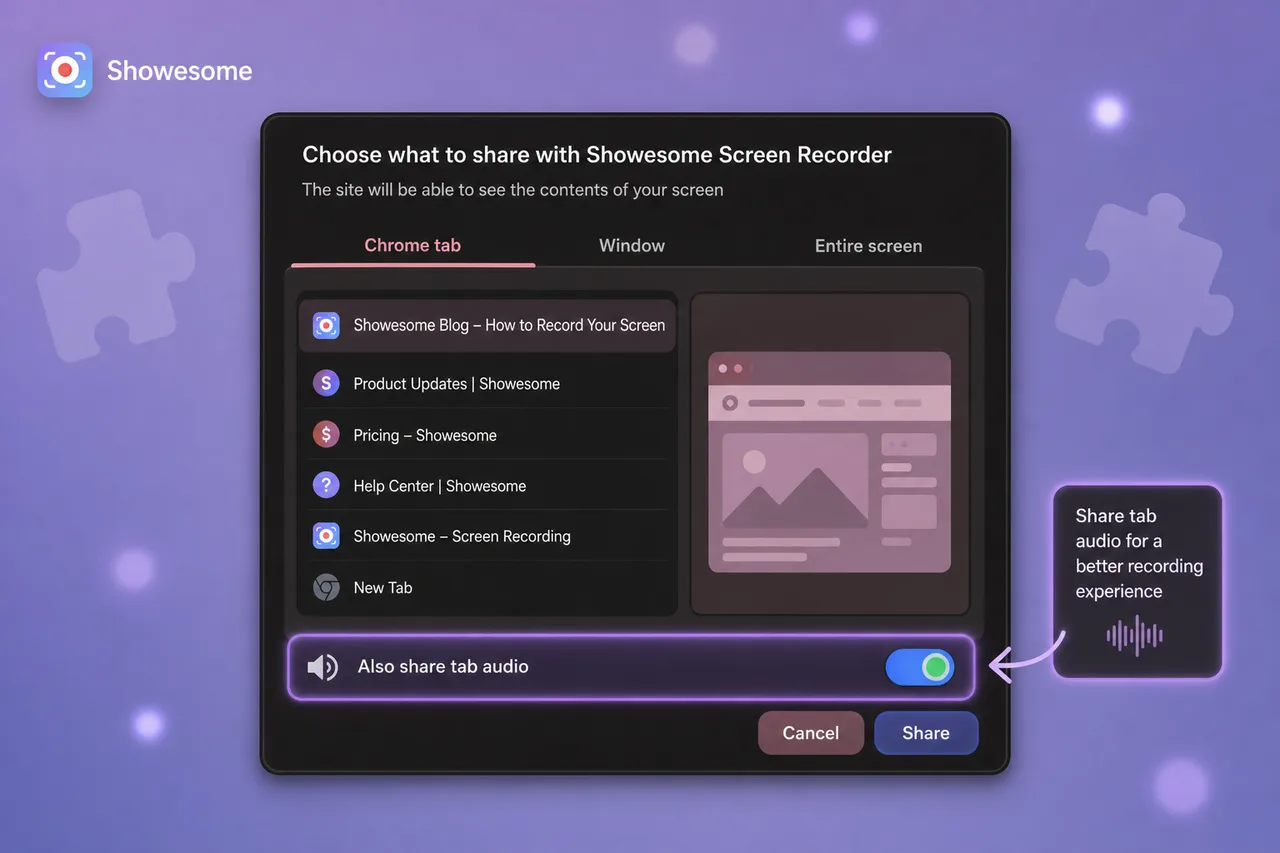
If your voice works but sound from the tab (video, music, meeting audio) is silent, the fix is almost always in Chrome’s share dialog — not the Showesome popup.
When you click Start Recording and pick a Chrome tab:
- Select the tab that is playing audio.
- Turn on Also share tab audio (wording may vary slightly by Chrome version).
- Confirm the share.
Common mistakes:
- Sharing a window or entire screen when you needed a tab — tab audio is most reliable on the Chrome tab option.
- The source tab was muted or at zero volume in the volume mixer.
- Tab audio was enabled but the mic was muted — you get tab sound only, no narration (or the reverse).
For a dedicated walkthrough, see Record a Chrome tab with audio. If tab audio is still missing after enabling the toggle, see Fix missing tab audio in Chrome.
Open on watch page (for search and full-screen viewing)
4. System audio on Mac and Windows (when tab audio is not enough)
System audio is sound from apps outside a single browser tab — desktop apps, some meeting clients, or multi-window workflows.
Mac: built-in tools often cannot capture system audio
macOS Screenshot (Shift + Command + 5) and QuickTime record the screen easily but do not capture system audio by default. If you expected YouTube or Zoom sound from a native app recording, silence is expected unless you route audio through a virtual driver (for example BlackHole) or use a recorder that captures tab/system audio in the browser. Full Mac walkthrough: How to screen record on Mac.
Practical shortcut for Chrome workflows: record the Chrome tab with Also share tab audio enabled — that captures browser playback without extra drivers.
Windows: Xbox Game Bar and volume mixer
On Windows 11, Xbox Game Bar (Win + G) is a common built-in recorder. If clips are silent:
- Open Game Bar Settings → Capturing.
- Set Audio to record to All (not Game only).
- Check the Volume mixer — the app you are recording must not be muted.
- Confirm microphone permission for Game Bar if you want voiceover.
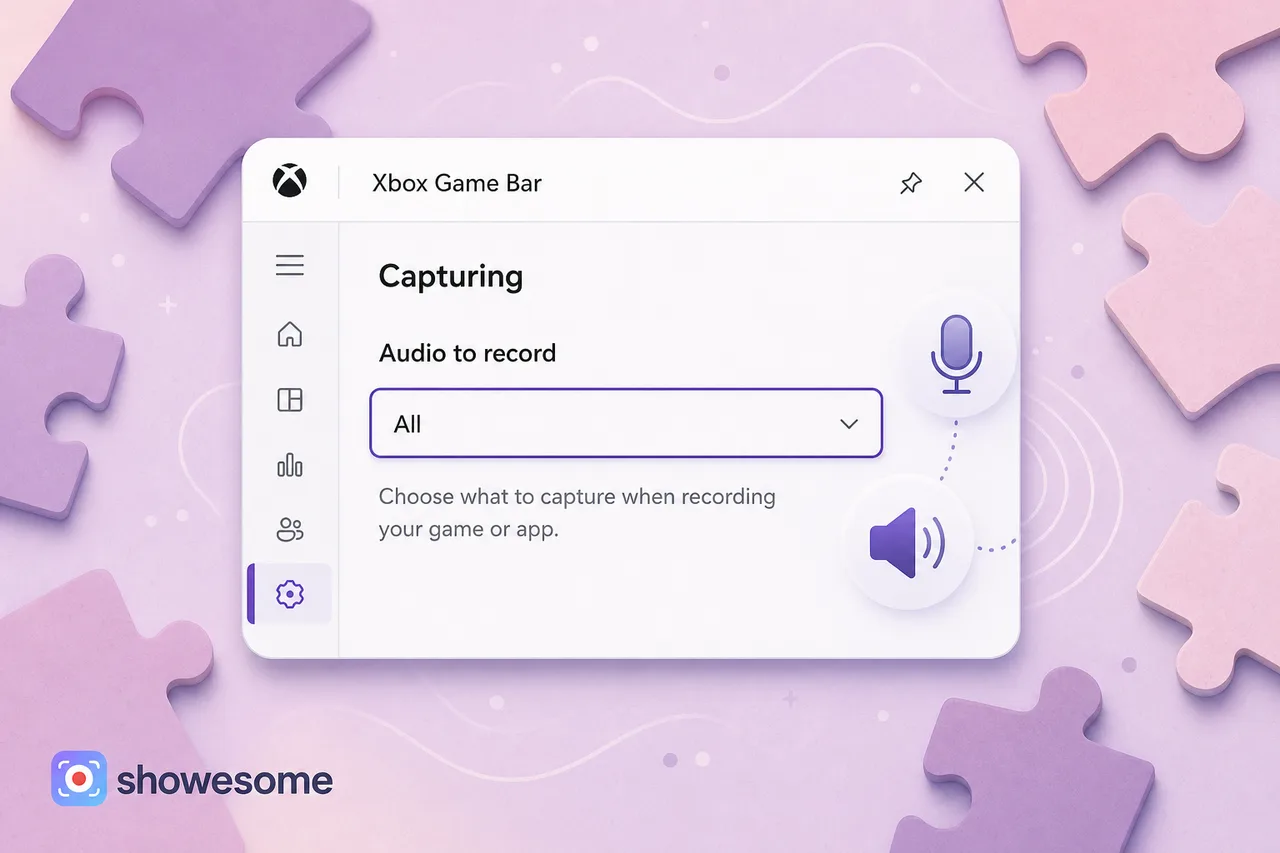
Full Windows walkthrough: How to screen record on Windows 11.
For Chrome-based tutorials and demos, many teams skip Game Bar and use a Chrome extension instead — one share dialog for tab video + tab audio + mic.
5. Still silent? Last checks
- Headphones vs speakers: Some setups echo or drop one audio path; try headphones for a test clip.
- Bluetooth mic disconnects: Windows or Mac may switch the default input mid-session — re-select the mic in the Showesome popup.
- Incognito window: Extensions need Allow in Incognito — see Use Showesome in Incognito mode.
- Wrong recording mode: Camera-only clips will not include screen/tab audio — see Recording modes.
Recording in Chrome with Showesome
Showesome is built for Chrome tab and screen capture with microphone control in the popup and tab audio from Chrome’s share dialog — the combination most tutorial creators need without installing virtual audio drivers.
- Pin the extension — Enable and pin Showesome.
- Set mic + mode in the popup — Record screen with audio.
- Enable Also share tab audio when you share a tab.
- Export MP4 from your library — Preview and export.
Why does my screen recording have no sound?
Mic muted, tab audio off, or OS permissions blocked — the three usual causes. Check Showesome's mic toggle, Chrome's Also share tab audio, and system privacy settings.
How do I enable tab audio in Chrome's share dialog?
Pick Chrome tab → toggle Also share tab audio on → Share. Required for YouTube, meeting tabs, and any page that plays sound.
Can QuickTime or macOS Screenshot record system audio on Mac?
Not by default. Native Mac capture often records video without system audio unless you route sound through a virtual driver. Chrome tab recording with tab audio is simpler for web content.
Quick checklist
- 10-second test — voice + tab sound so you know what failed.
- Mic — unmuted in popup, correct device, OS permission for Chrome.
- Tab audio — Chrome tab + Also share tab audio on.
- Mac system audio — do not expect QuickTime alone to capture app sound; use tab audio or a dedicated workflow.
- Windows — Game Bar Audio to record: All, volume mixer not muted.
Related reading
- Chrome won't let me record — fix permissions — camera, mic, and screen capture blocked.
- Record your screen with audio — mic, mute, and tab sound in Showesome.
- Record a Chrome tab with audio — share dialog and tab-audio checkbox.
- Common screen recording mistakes — clarity and pacing after audio works.
- Support — FAQs for permissions, devices, and shortcuts.
Was this guide helpful?
One vote per browser. No account required.
Be the first to share feedback.
Comments
Join the discussion — comments are moderated to keep things helpful. Be respectful and constructive.
Preparing sign-in…